
< Back to help home

 < Back to help home
iPad: How to completely remove the app
This article will help you remove an existing version of the app from your iPad.
Follow this guide if the app becomes unresponsive and cannot be fixed by restarting.
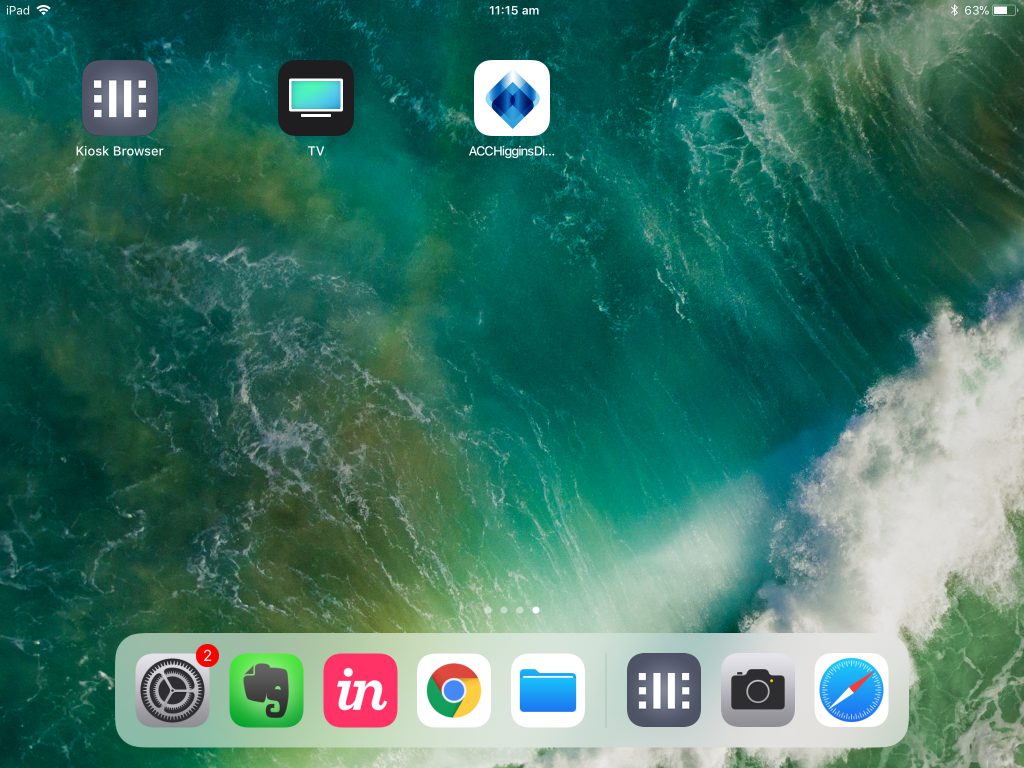
Find the app on your iPad’s homescreen
Press and hold on the app icon for a few seconds.
The app will start to shake and a X will appear top-left of the icon – tap this button
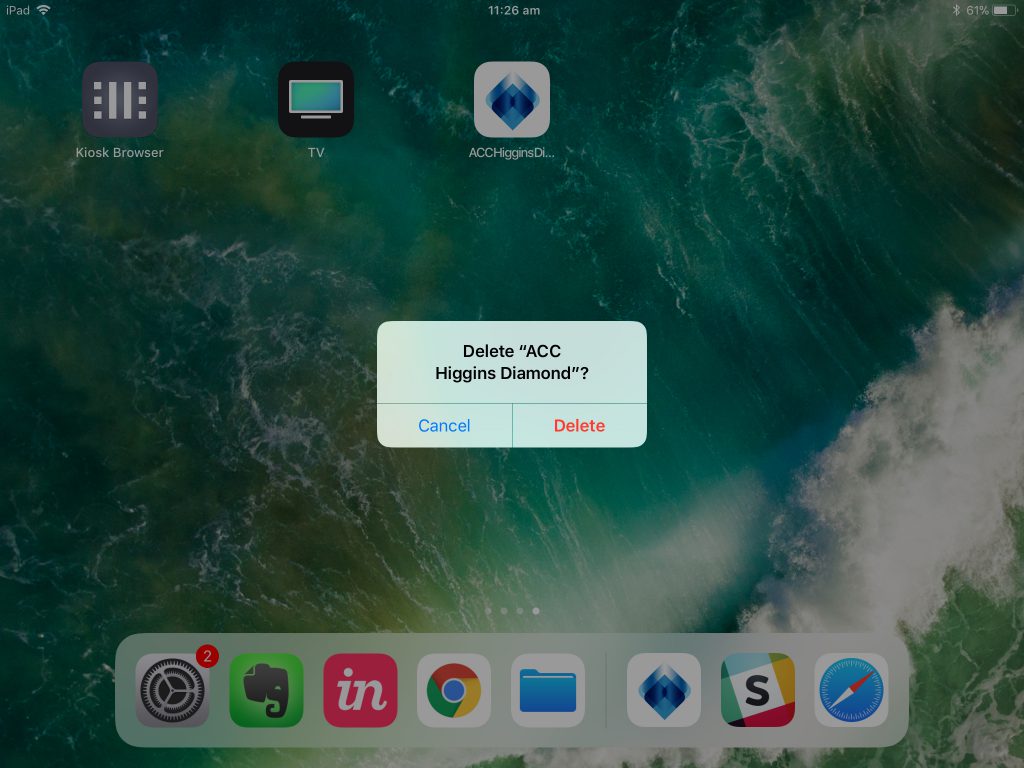
Confirm that you wish to delete the app by tapping the red ‘Delete’ button.
Go to iPad settings
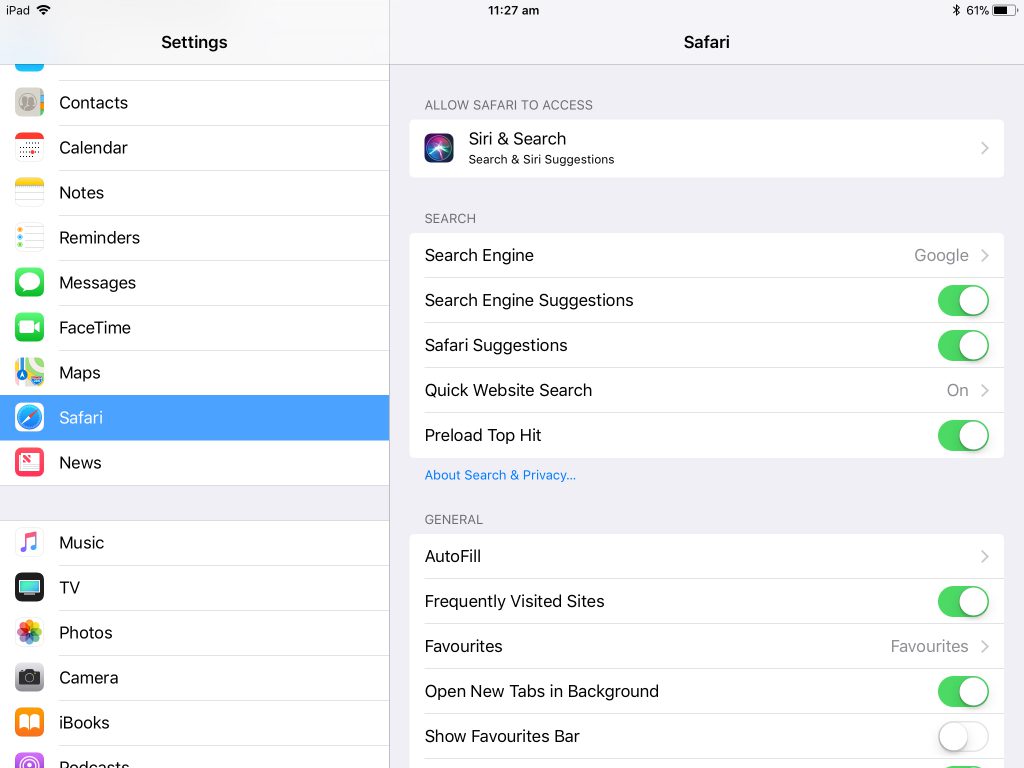
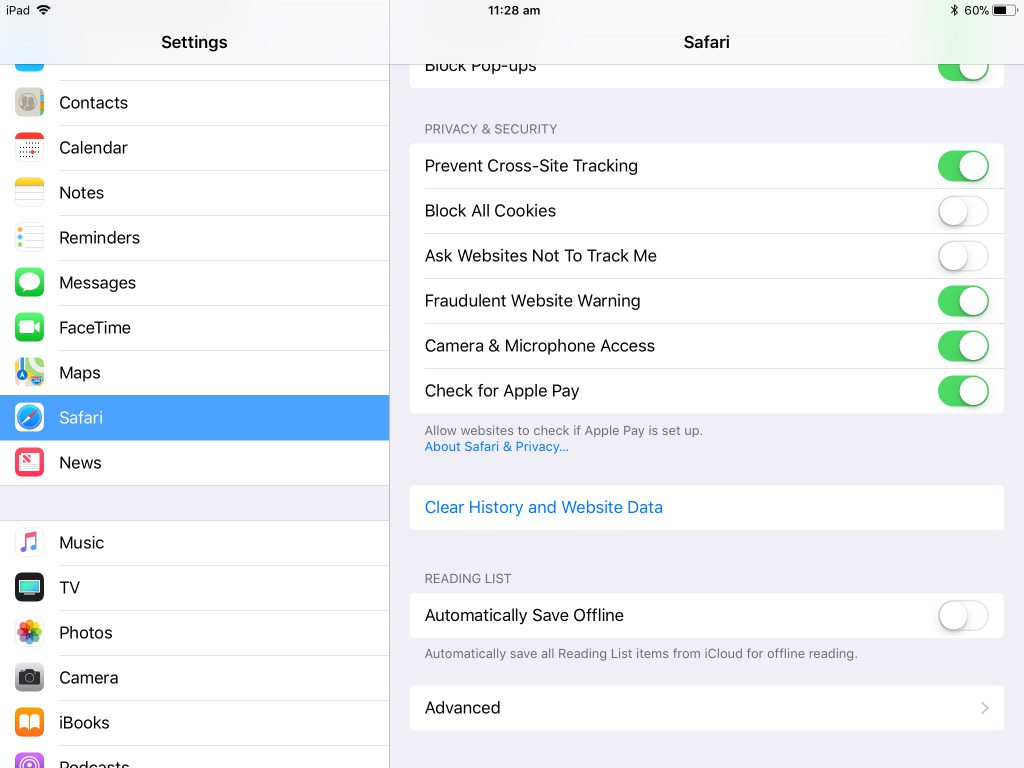
Scroll down to find ‘Safari’ in the left hand list.
Click on ‘Safari’
Scroll down in the right-hand list to find ‘Clear History and Website Data’ – click this link
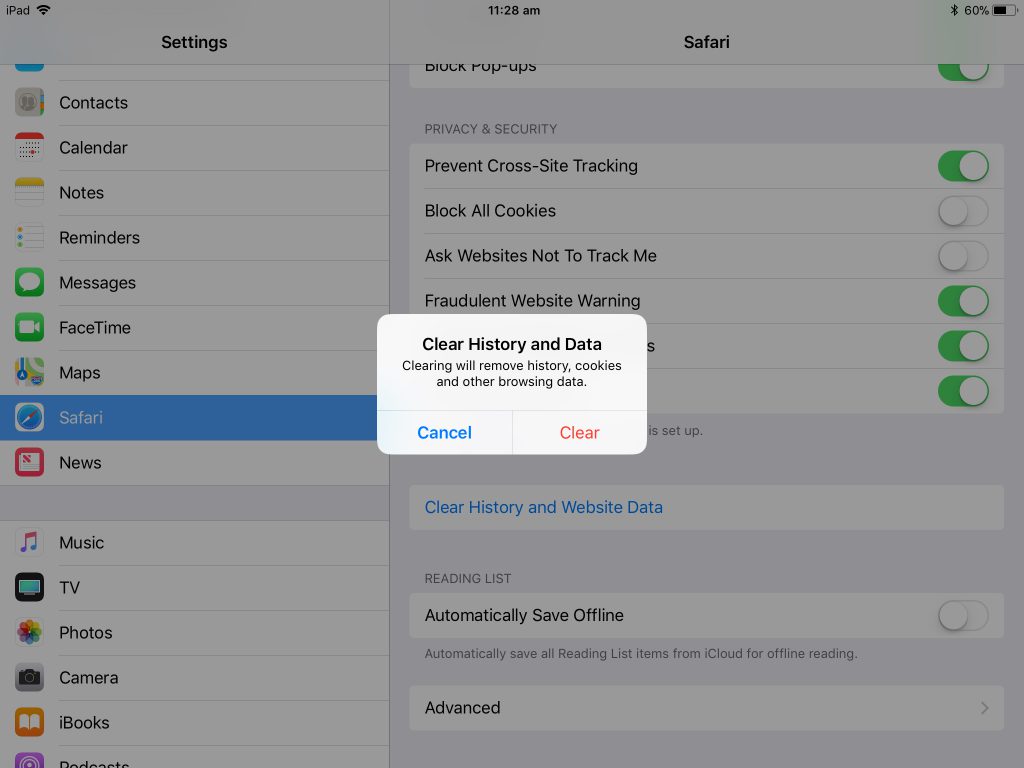
Click ‘Clear’ to confirm that you wish to clear everything.
You can now re-install the app as you did for the first time.